Git & GitHub: The Complete Professional Guide
Everything you need to master Git and GitHub — from first-time setup to force pushing like a pro. Covers branching, merging, rebasing, stashing, reset, revert, conventional commits, Git LFS, and the professional team workflow. Treat this as your permanent reference documentation.
Chapter 1: What is Git & GitHub?
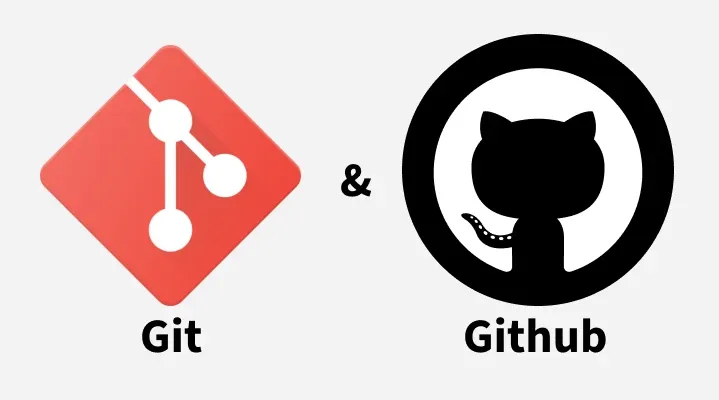
Git is a free, open-source distributed version control system created by Linus Torvalds in 2005. It tracks changes in your code over time, lets you revert to previous states, and allows multiple developers to collaborate without overwriting each other's work — all locally on your machine.
GitHub is a cloud-based hosting platform for Git repositories. Think of Git as the engine and GitHub as the garage where you park and share your work with the world. Together, they form the backbone of modern software development.
Chapter 2: Installation & First-Time Setup
Before anything else, install Git on your system and configure your identity. Every commit you make will be stamped with this information.
Install Git
# macOS (via Homebrew)
brew install git

# Linux (Debian/Ubuntu)
sudo apt update && sudo apt install git

# Windows — download the installer from:
# https://git-scm.com/download/win
Configure Your Identity
# Set your name (appears in every commit)
git config --global user.name "Firstname Lastname"

# Set your email (must match your GitHub email for contributions to count)
git config --global user.email "you@example.com"

# Enable colored output in the terminal
git config --global color.ui auto

# Set your default branch name to main (modern standard)
git config --global init.defaultBranch main

# Set your preferred editor (e.g. VS Code)
git config --global core.editor "code --wait"

# View all your current config settings
git config --list

# View a specific setting
git config user.name
Chapter 3: Initializing & Cloning Repositories
Every Git project starts with either init (starting fresh) or clone (copying an existing one).
# Initialize a new local repository in the current directory
git init

# Initialize with a specific folder name
git init my-project

# Clone a remote repository into a new local folder
git clone https://github.com/username/repository.git

# Clone into a specific folder name
git clone https://github.com/username/repository.git my-folder

# Clone only the latest snapshot (faster for large repos)
git clone --depth 1 https://github.com/username/repository.git
Chapter 4: Stage & Snapshot
Git has three states your files live in: modified (changed but not staged), staged (marked for the next commit), and committed (saved to history). Understanding this flow is the foundation of everything.
# Check the status of your working directory and staging area
git status

# Stage a specific file
git add filename.txt

# Stage all changes in the current directory
git add .

# Stage changes interactively (choose hunks to stage)
git add -p

# Unstage a file (keeps changes in working directory)
git reset filename.txt

# See what has changed but is NOT yet staged
git diff

# See what is staged and ready to commit
git diff --staged

# Commit staged changes with a message
git commit -m "your commit message"

# Stage all tracked files and commit in one step
git commit -am "your commit message"

# Amend the most recent commit (message or content)
git commit --amend -m "corrected commit message"

# Amend without changing the message
git commit --amend --no-edit
Chapter 5: Conventional Commits
Conventional Commits is a specification that brings structure and meaning to your commit messages. It makes your history readable by humans and machines alike, and it powers tools like Conventional Changelog and semantic-release.
The Format
<type>(<scope>): <short description>

[optional body]

[optional footer]
Types
feat:      # A new feature
fix:       # A bug fix
docs:      # Documentation changes only
style:     # Formatting, missing semicolons — no logic change
refactor:  # Code restructure without feature or bug change
perf:      # Performance improvements
test:      # Adding or updating tests
build:     # Build system or dependency changes
ci:        # CI/CD configuration changes
chore:     # Other changes that don't modify src or test files
revert:    # Reverts a previous commit
Examples
git commit -m "feat(auth): add Google OAuth login"
git commit -m "fix(cart): correct total price calculation on discount"
git commit -m "docs(readme): update installation instructions"
git commit -m "refactor(api): extract user service into separate module"

# Breaking change — adds BREAKING CHANGE in footer
git commit -m "feat(api)!: remove deprecated /v1 endpoints

BREAKING CHANGE: /v1/users and /v1/posts have been removed. Migrate to /v2."
Chapter 6: Branching
Branches let you work on features, fixes, or experiments in isolation without disturbing the main codebase. They are cheap and fast in Git — use them liberally.
# List all local branches (* marks the active branch)
git branch

# List all remote branches
git branch -r

# List all branches (local and remote)
git branch -a

# Create a new branch
git branch feature/login

# Switch to an existing branch
git checkout feature/login

# Create and switch to a new branch in one step (classic)
git checkout -b feature/login

# Create and switch — modern syntax (Git 2.23+)
git switch -c feature/login

# Switch to an existing branch (modern)
git switch feature/login

# Rename the current branch
git branch -m new-branch-name

# Rename a specific branch
git branch -m old-name new-name

# Delete a branch (safe — prevents deletion if unmerged)
git branch -d feature/login

# Force delete a branch (even if unmerged)
git branch -D feature/login

# Delete a remote branch
git push origin --delete feature/login

# Push a new local branch to remote and set upstream
git push -u origin feature/login
Chapter 7: Merging
Merging integrates changes from one branch into another. Git supports several merge strategies depending on your workflow.
# Merge a branch into your current branch
git merge feature/login

# Merge with a commit even if fast-forward is possible (preserves branch history)
git merge --no-ff feature/login

# Merge using fast-forward only (fails if not possible)
git merge --ff-only feature/login

# Squash all commits from a branch into one unstaged change
git merge --squash feature/login
git commit -m "feat(login): add login feature"

# Abort a merge that has conflicts
git merge --abort

# After resolving conflicts manually, mark as resolved and continue
git add resolved-file.txt
git commit
Resolving Merge Conflicts
# 1. Git will mark conflicted files — open them and look for:
#    <<<<<<< HEAD
#    your changes
#    =======
#    incoming changes
#    >>>>>>> feature/login

# 2. Edit the file to keep what you want, remove the markers

# 3. Stage the resolved file
git add conflicted-file.txt

# 4. Complete the merge
git commit
Chapter 8: Rebasing
Rebase replays your commits on top of another branch, producing a clean, linear history. It's a powerful tool — use it thoughtfully, especially on shared branches.
# Rebase current branch onto main (replays your commits on top of main)
git rebase main

# Rebase interactively — rewrite, reorder, squash, or drop commits
git rebase -i HEAD~3        # last 3 commits
git rebase -i origin/main   # all commits ahead of main

# Interactive rebase options (shown in the editor):
# pick   — keep commit as-is
# reword — keep commit but edit its message
# edit   — pause and amend the commit
# squash — meld into the previous commit (combines messages)
# fixup  — meld into the previous commit (discards this message)
# drop   — remove the commit entirely

# Continue after resolving conflicts during a rebase
git rebase --continue

# Skip the current conflicting commit and move on
git rebase --skip

# Abort and return to the state before rebase started
git rebase --abort

# Rebase onto a specific base (move commits from one base to another)
git rebase --onto main feature-a feature-b
Chapter 9: Remote Repositories
Remotes are versions of your repository hosted elsewhere — GitHub, GitLab, Bitbucket, or your own server. origin is the conventional name for your primary remote.
# List all remotes and their URLs
git remote -v

# Add a remote
git remote add origin https://github.com/username/repo.git

# Change the URL of an existing remote
git remote set-url origin https://github.com/username/new-repo.git

# Remove a remote
git remote remove origin

# Rename a remote
git remote rename origin upstream

# Fetch all changes from remote (does NOT merge)
git fetch origin

# Fetch a specific branch
git fetch origin main

# Fetch and merge the tracked remote branch into current branch
git pull

# Pull with rebase instead of merge (cleaner history)
git pull --rebase

# Push the current branch to its tracked remote branch
git push

# Push and set upstream tracking for the first time
git push -u origin feature/login

# Push all local branches to remote
git push --all origin

# Push all tags to remote
git push --tags
Chapter 10: Push — Force & Lease
After a rebase or amend, your local history diverges from the remote. A regular push will be rejected. Here's how to handle it — safely.
# Force push — overwrites the remote branch completely
# ⚠️ DANGEROUS on shared branches — can destroy teammates' work
git push --force
git push -f

# Force push with lease — safer alternative
# Fails if someone else has pushed since your last fetch
# Protects against accidentally overwriting others' work
git push --force-with-lease

# Force push with lease and explicit expected ref (most precise)
git push --force-with-lease=main:refs/heads/main

# The golden rule:
# Use --force-with-lease instead of --force. Always.
# Never force push to main or any shared branch without team agreement.
Chapter 11: Stashing
Stash lets you save your in-progress work temporarily without committing, so you can switch context and come back later.
# Stash all modified tracked files
git stash

# Stash with a descriptive message
git stash save "WIP: login form validation"

# Stash including untracked files
git stash -u

# Stash including untracked and ignored files
git stash -a

# List all stashes
git stash list

# Apply the most recent stash (keeps it in the stash list)
git stash apply

# Apply a specific stash
git stash apply stash@{2}

# Apply the most recent stash and remove it from the list
git stash pop

# Show what's in a stash (summary)
git stash show

# Show full diff of a stash
git stash show -p stash@{0}

# Drop (delete) a specific stash
git stash drop stash@{1}

# Clear all stashes
git stash clear

# Create a new branch from a stash
git stash branch feature/new-branch stash@{0}
Chapter 12: Undoing & Resetting
Git gives you multiple tools to undo mistakes — each with different levels of permanence. Know which one to reach for.
# Discard changes in working directory (unrecoverable)
git checkout -- filename.txt

# Modern syntax (Git 2.23+)
git restore filename.txt

# Unstage a file (keep changes in working directory)
git restore --staged filename.txt

# Revert a commit by creating a new commit that undoes it (safe for shared branches)
git revert abc1234

# Revert the most recent commit
git revert HEAD

# Revert without immediately committing
git revert --no-commit abc1234

# ── git reset ────────────────────────────────────────────────

# Soft reset — moves HEAD back, keeps changes staged
git reset --soft HEAD~1

# Mixed reset (default) — moves HEAD back, unstages changes, keeps files
git reset HEAD~1
git reset --mixed HEAD~1

# Hard reset — moves HEAD back, DELETES all changes (unrecoverable)
git reset --hard HEAD~1

# Hard reset to a specific commit
git reset --hard abc1234

# Hard reset to match the remote branch exactly (nuclear option)
git reset --hard origin/main

# ── Recovering from a bad reset ──────────────────────────────
# Git keeps a log of every HEAD movement — use reflog to find lost commits
git reflog
git reset --hard HEAD@{3}   # go back to where you were 3 moves ago
Chapter 13: Inspect & Compare
# Show full commit history
git log

# Compact one-line log
git log --oneline

# Log with branch graph
git log --oneline --graph --all

# Log with stats (files changed, insertions, deletions)
git log --stat

# Log for a specific file
git log --follow filename.txt

# Commits on branchA not on branchB
git log branchB..branchA

# What is in branchA that is not in branchB (diff)
git diff branchB...branchA

# Show a specific commit
git show abc1234

# Show what changed in the last commit
git show HEAD

# Show all commits that moved a file path
git log --stat -M
Chapter 14: Tracking Path Changes
# Delete a file and stage the removal
git rm filename.txt

# Remove a file from tracking but keep it locally (useful for .gitignore fixes)
git rm --cached filename.txt

# Move or rename a file and stage the change
git mv old-name.txt new-name.txt

# Show commits with moved file paths indicated
git log --stat -M
Chapter 15: Ignoring Files
# Create a .gitignore file in your project root
touch .gitignore
# Example .gitignore contents:
node_modules/
.env
.DS_Store
dist/
*.log
*.psd
coverage/
.idea/
.vscode/
# Set a global gitignore for your entire machine
git config --global core.excludesfile ~/.gitignore_global

# If a file is already tracked and you add it to .gitignore,
# you must untrack it first:
git rm --cached filename.txt
git commit -m "chore: stop tracking filename.txt"
Chapter 16: Tags & Releases
# List all tags
git tag

# Create a lightweight tag
git tag v1.0.0

# Create an annotated tag (recommended — includes message and metadata)
git tag -a v1.0.0 -m "Release version 1.0.0"

# Tag a specific past commit
git tag -a v0.9.0 abc1234 -m "Beta release"

# Show tag details
git show v1.0.0

# Push a specific tag to remote
git push origin v1.0.0

# Push all tags to remote
git push --tags

# Delete a local tag
git tag -d v1.0.0

# Delete a remote tag
git push origin --delete v1.0.0
Chapter 17: Cherry-Picking
Cherry-pick lets you grab a specific commit from any branch and apply it to your current branch — without merging the entire branch. It's useful when you need a bug fix from a feature branch on main before the full feature is ready, or when you accidentally committed to the wrong branch.
# Apply a specific commit to your current branch
git cherry-pick abc1234

# Cherry-pick multiple commits
git cherry-pick abc1234 def5678

# Cherry-pick a range of commits (from older to newer)
git cherry-pick abc1234..def5678

# Cherry-pick without automatically committing (stages the changes only)
git cherry-pick --no-commit abc1234

# Cherry-pick and edit the commit message before committing
git cherry-pick --edit abc1234

# If a conflict occurs during cherry-pick — resolve it then:
git add resolved-file.txt
git cherry-pick --continue

# Skip the conflicting commit and move to the next
git cherry-pick --skip

# Abort and return to the state before cherry-pick started
git cherry-pick --abort

# Cherry-pick from a remote branch (fetch first)
git fetch origin
git cherry-pick origin/feature/login~1   # second-to-last commit on that branch
When to Use Cherry-Pick
# Scenario: hotfix is on feature branch, you need it on main NOW
git switch main
git cherry-pick abc1234   # grab just the fix commit

# Scenario: you committed to main by mistake, move it to feature branch
git switch feature/my-feature
git cherry-pick abc1234   # apply the commit here

git switch main
git reset --hard HEAD~1   # remove it from main
Cherry-pick creates a new commit with a different SHA even if the content is identical. Use it sparingly — overusing it can lead to duplicate commits and a confusing history. For integrating full features, prefer merge or rebase.
Chapter 18: Handling Large Files — Git LFS
GitHub blocks direct pushes of files larger than 100 MB. Git LFS (Large File Storage) replaces large files with lightweight text pointers inside Git, while storing the actual file contents on a remote server.
# Install Git LFS
sudo apt install git-lfs      # Linux (Debian/Ubuntu)
brew install git-lfs           # macOS
choco install git-lfs          # Windows

# Initialize Git LFS in your repository
git lfs install

# Track specific file extensions
git lfs track "*.psd"
git lfs track "*.mp4"
git lfs track "*.zip"

# Always commit the .gitattributes file that LFS creates
git add .gitattributes
git commit -m "chore: configure Git LFS tracking"

# List all files currently tracked by LFS
git lfs ls-files

# Stage, commit, and push large files normally after setup
git add .
git commit -m "feat: add design assets via Git LFS"
git push -u origin main
Chapter 19: Aliases — Work Like a Pro
Git aliases let you create shortcuts for commands you run constantly. Set these once in your global config and save thousands of keystrokes.
git config --global alias.st status
git config --global alias.co checkout
git config --global alias.br branch
git config --global alias.lg "log --oneline --graph --all --decorate"
git config --global alias.undo "reset --soft HEAD~1"
git config --global alias.unstage "restore --staged"

# Now you can use:
git st          # git status
git lg          # beautiful branch graph
git undo        # undo last commit, keep changes staged
git unstage .   # unstage everything
Chapter 20: The Professional Workflow (Git Flow)
A consistent branching strategy is what separates a chaotic repository from a professional one. Here is the workflow used by most production teams:
# 1. Always start from an up-to-date main branch
git switch main
git pull

# 2. Create a feature branch with a descriptive name
git switch -c feat/user-authentication

# 3. Work, commit often using conventional commits
git add .
git commit -m "feat(auth): add JWT token generation"
git commit -m "feat(auth): add login endpoint"
git commit -m "test(auth): add unit tests for login flow"

# 4. Keep your branch up to date with main using rebase
git fetch origin
git rebase origin/main

# If conflicts arise:
# resolve files → git add . → git rebase --continue

# 5. Push to remote
git push -u origin feat/user-authentication

# 6. Open a Pull Request on GitHub
# Add description, link issues, request reviewers

# 7. After PR approval and merge, clean up
git switch main
git pull
git branch -d feat/user-authentication
git push origin --delete feat/user-authentication
Quick Reference Card
git init                          # new repo
git clone <url>                   # copy remote repo
git status                        # what's changed
git add .                         # stage everything
git commit -m "message"           # commit
git push -u origin main           # first push
git pull --rebase                 # pull cleanly
git switch -c feature/name        # new branch
git merge feature/name            # merge branch
git rebase main                   # rebase onto main
git stash                         # save work temporarily
git stash pop                     # restore stash
git reset --soft HEAD~1           # undo commit, keep staged
git reset --hard HEAD~1           # undo commit, delete changes
git revert HEAD                   # safe undo (new commit)
git push --force-with-lease       # safe force push
git log --oneline --graph --all   # visual history
git reflog                        # recover anything